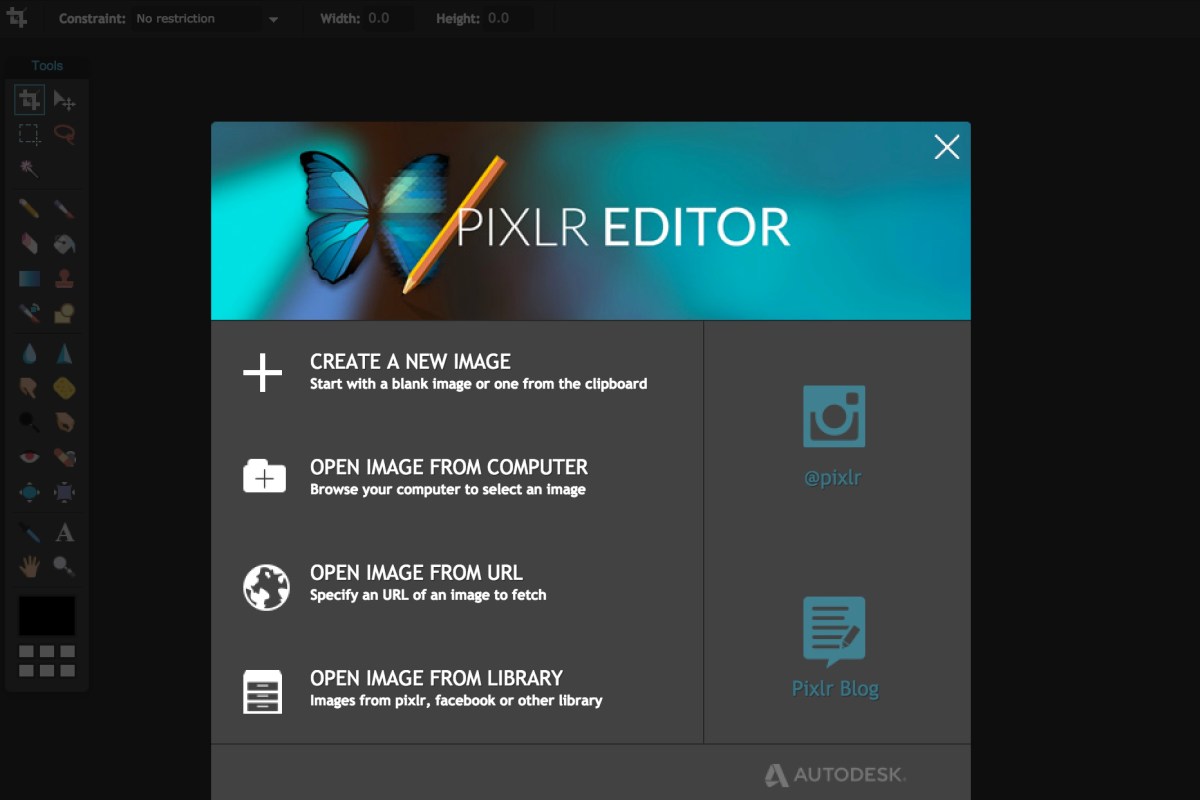
Learn the basics of photo editing by creating a collage that can be used as an inspiration wall, magazine spread, wall poster or apparel design.
Use Autodesk Pixlr Editor to manipulate photo to create your design.
Learn the tools you need to use by viewing this handout
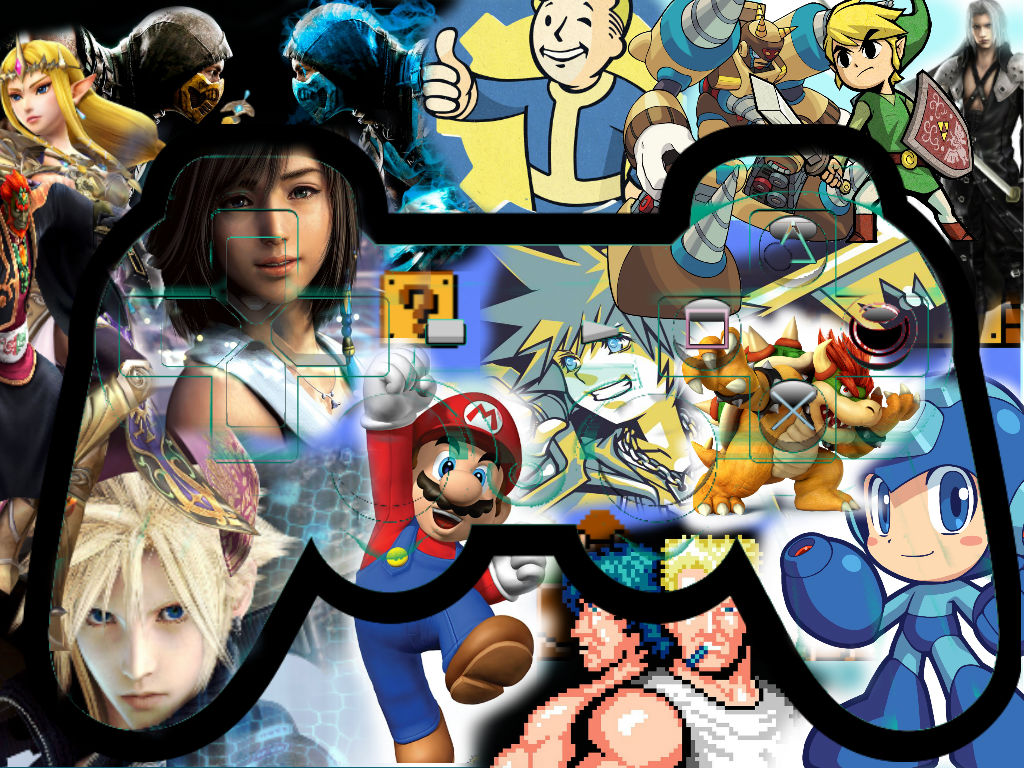
Pixlr Toolbar

You will you explore the following tools and more while making your collage
Marquee Tool: use this to select rectangular or elliptical areas of a layer or the canvas.
- Feathering creates a softer edge at the selection’s border.
- Anti-aliasing creates a crisper outline.
Lasso Tool: a free-hand version of the marquee tool. Use this to define an area in any shape you can draw.
Gradient Tool: Create gradual colored shading of two or more colors.
Move Tool: this lets you move whatever you’ve selected around the canvas.
Erase : Use the erase tool to remove details.
Shortcut for Copy: Ctrl + C
Shortcut for Paste: Ctrl + P
Shortcut for Cut: Ctrl + X
Shortcut for Undo: Ctrl + Z
Short Cut for Free Transform : Ctrl+ T
After you have saved at least 10 high resolution files to your computer, click here to open Pixlr and begin your project Autodesk Pixlr Editor

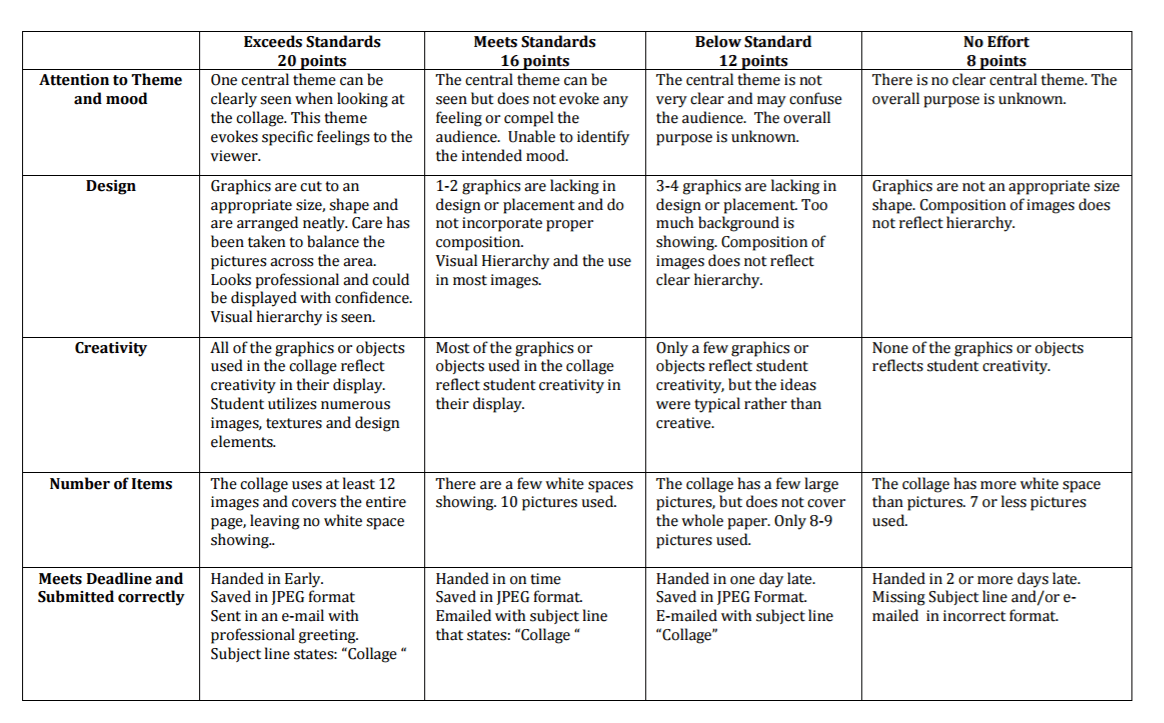
Rubric: digital-arts-collage-rubric
 Familiare's UASGC Website